Managing Orders
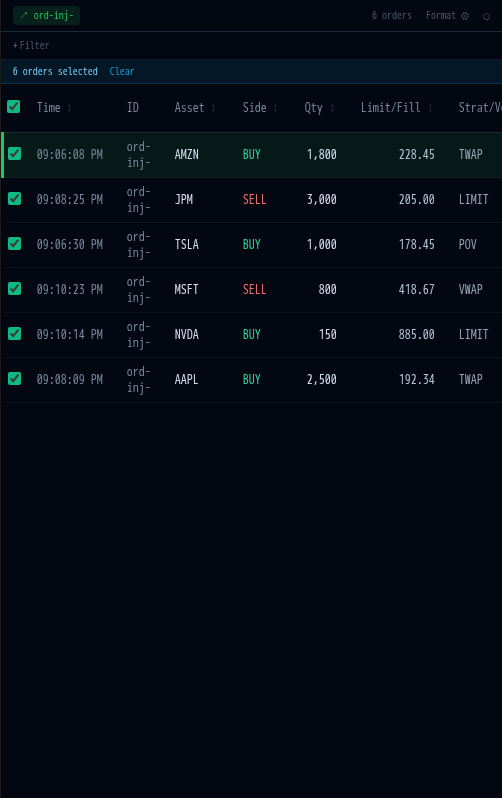
The Order Blotter shows all your orders with real-time status updates. It supports multi-select, bulk actions, and permission-gated order management.
Order lifecycle
Section titled “Order lifecycle”Every order progresses through a status lifecycle:
| Status | Colour | Description |
|---|---|---|
| Pending | Amber | Submitted, awaiting OMS validation |
| Working | Blue | Actively being executed by an algo strategy |
| Filled | Green | Fully filled. All shares executed. |
| Held | Yellow | Paused by trader, desk-head, or risk-manager |
| Cancelled | Orange | Cancelled before completion |
| Rejected | Red | Rejected by risk engine or OMS |
| Expired | Grey | Time limit reached without full fill |
Selecting orders
Section titled “Selecting orders”- Click a row to select it and broadcast to linked panels.
- Ctrl+Click (or Cmd+Click) to toggle individual rows.
- Shift+Click to select a range of rows.
- Checkbox column: click the header checkbox to select all, or click individual checkboxes per row.
When multiple orders are selected, a blue bar appears showing the count with a Clear button.
Right-click actions
Section titled “Right-click actions”Right-click any order (or a multi-selection) to open the context menu:
| Action | Available to | Description |
|---|---|---|
| Select and broadcast | Everyone | Focus this order across linked panels |
| View asset in ladder | Everyone | Navigate the market ladder to this asset |
| Copy order ID | Everyone | Copy the order ID to clipboard |
| Hold | Traders (own), desk-head, risk-manager, admin | Pause active orders |
| Unhold | Traders (own), desk-head, risk-manager, admin | Resume held orders |
| Cancel | Traders (own), desk-head, risk-manager, admin | Cancel active or held orders |
| Force Kill | Admin, risk-manager only | Immediately terminate orders |
Traders can only manage their own orders. Desk-heads can manage orders from their desk. Risk-managers and admins can manage any order.
Sorting and filtering
Section titled “Sorting and filtering”- Click any column header to sort ascending or descending.
- Right-click a header for sort, filter, and conditional formatting options.
- Use the Filter Bar below the toolbar to build filter expressions (AND/OR logic with 13 operators).
Conditional formatting
Section titled “Conditional formatting”Click Format in the toolbar to define colour rules. For example:
- Highlight all SELL orders in red.
- Background all filled orders in green.
- Bold any order with quantity above 10,000.
Rules can be scoped to the entire row or a specific cell.
Child orders
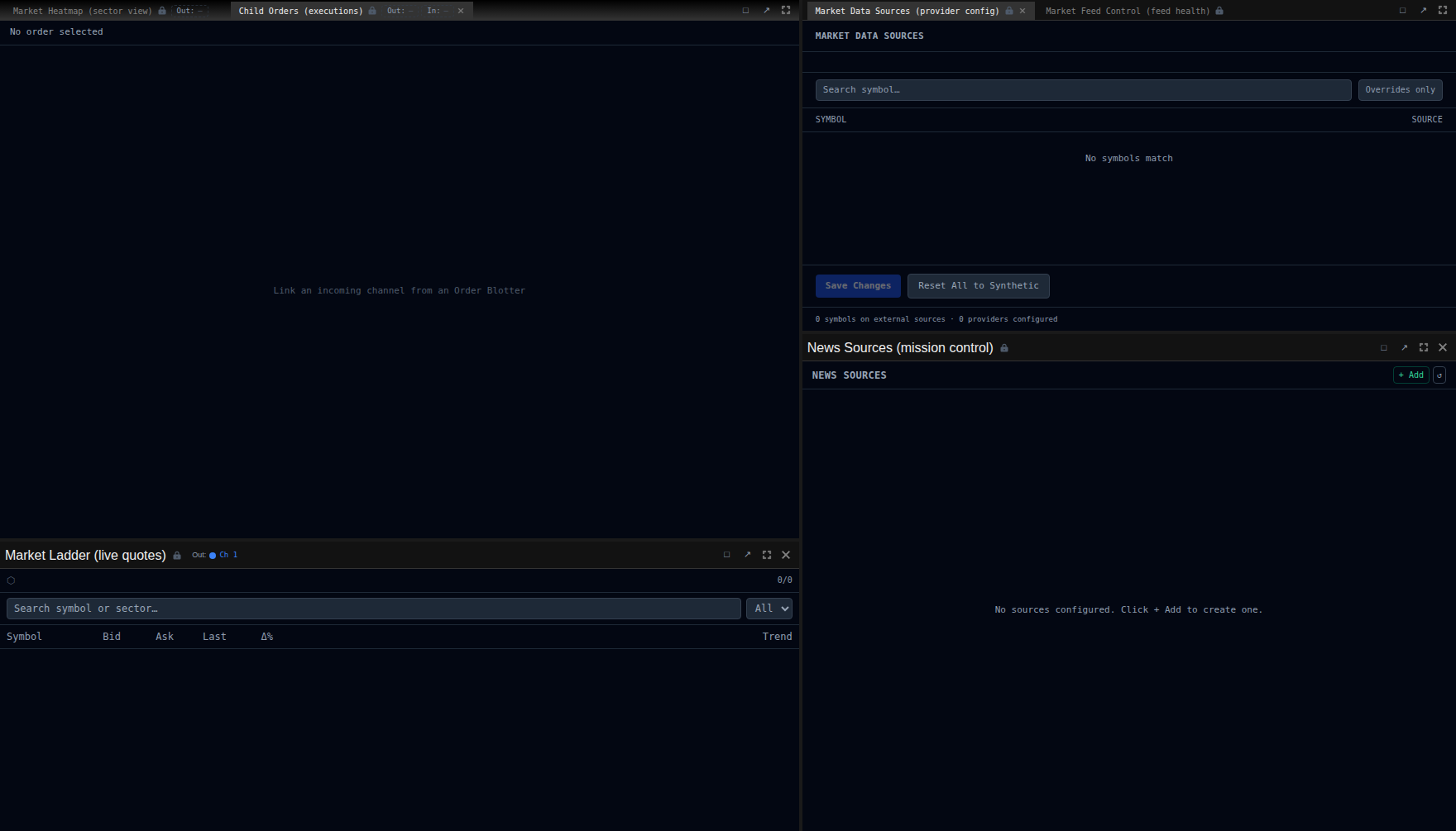
Section titled “Child orders”Click an order in the blotter to see its child slices in the Child Orders panel. Each algo strategy breaks the parent into execution slices showing:
- Slice timing and quantity
- Fill price and venue
- Liquidity flag (MAKER/TAKER)
- Commission