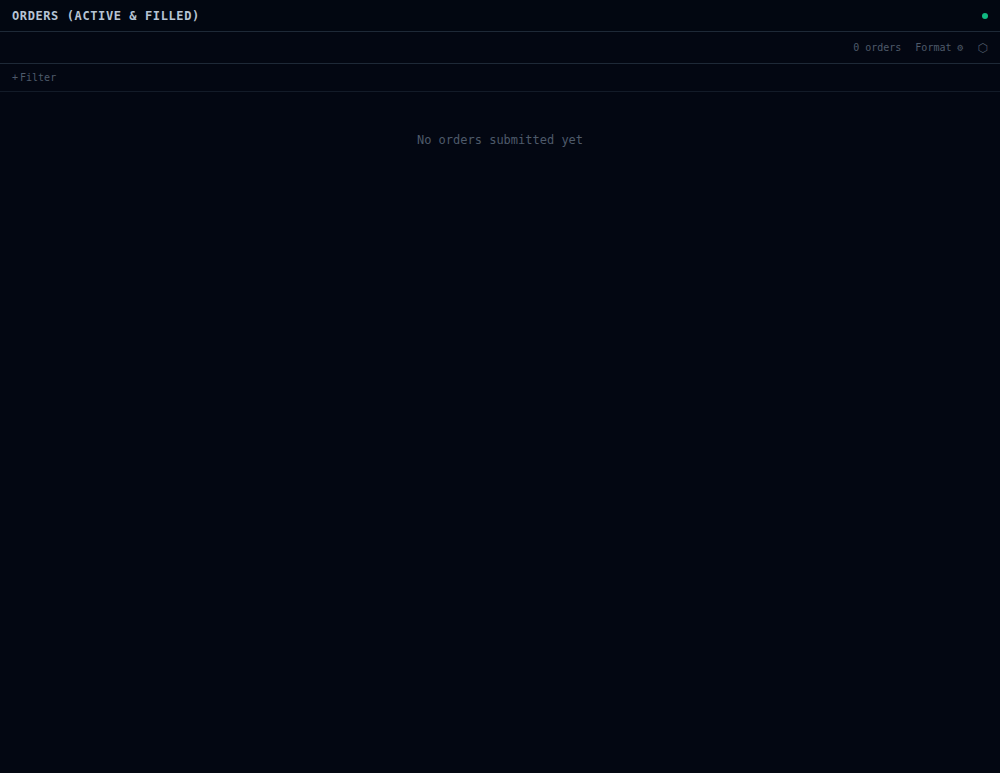
Screenshots
All screenshots are auto-generated from the live UI using Playwright on every push to main.
Trading Dashboard
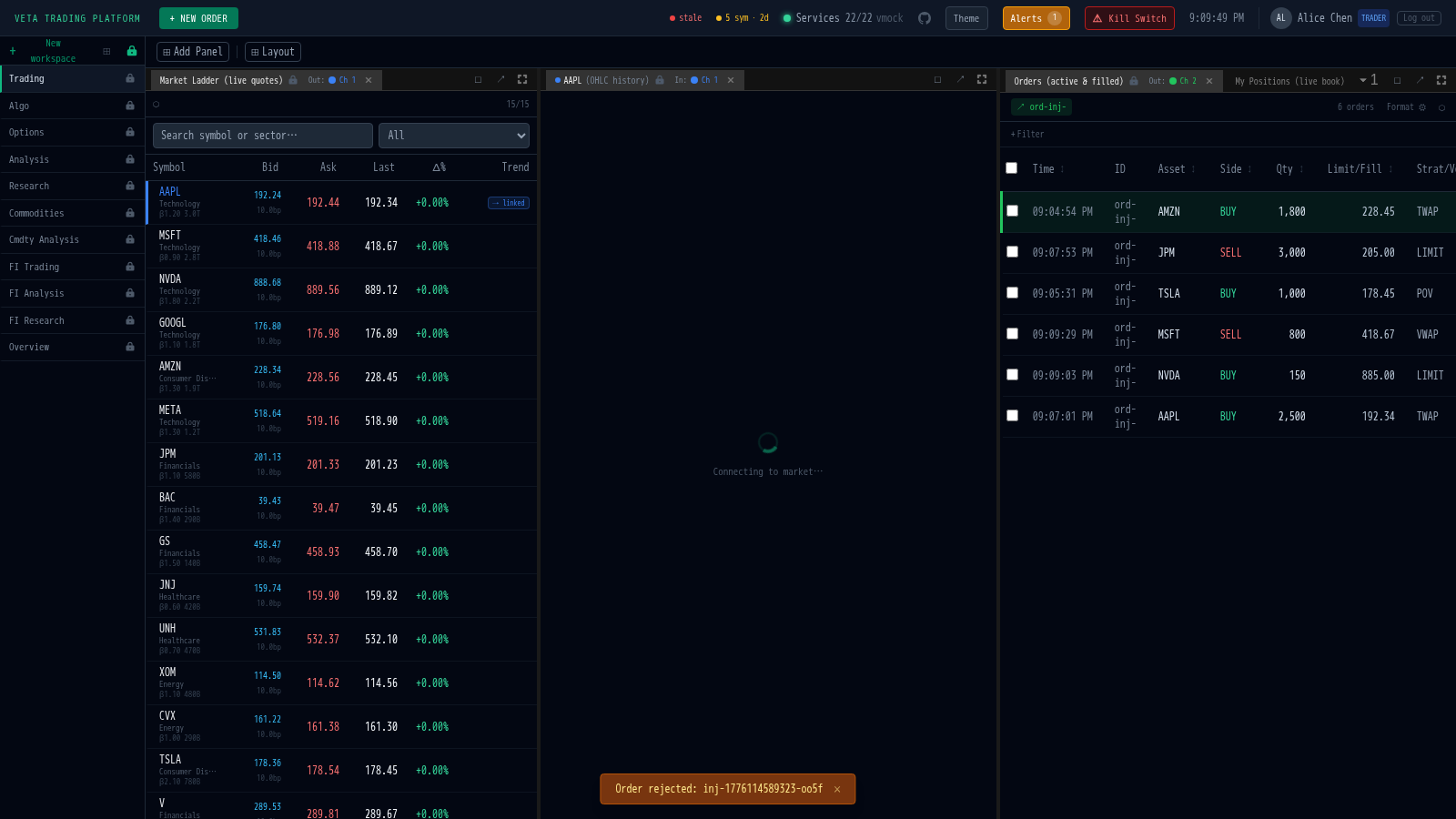
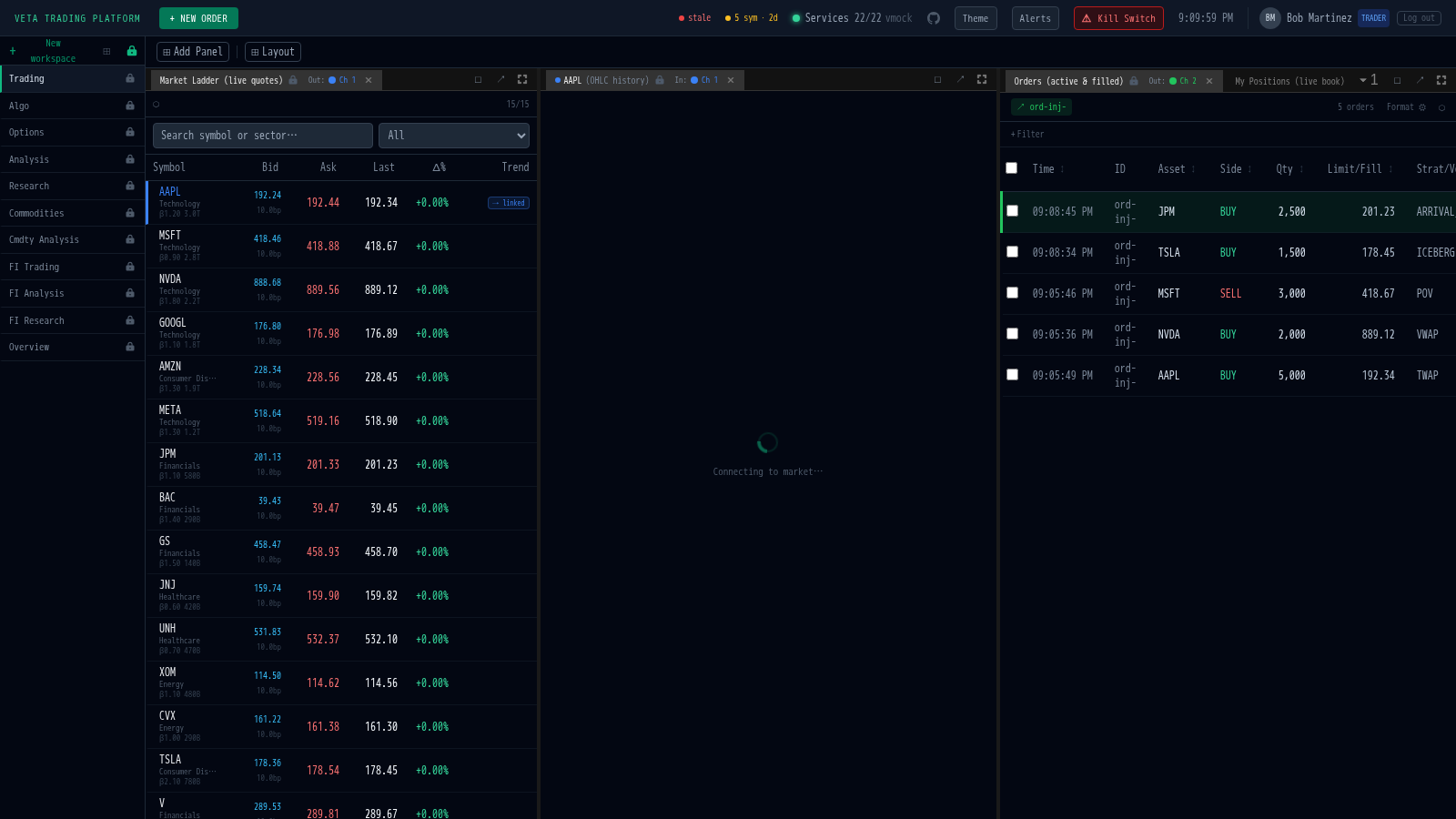
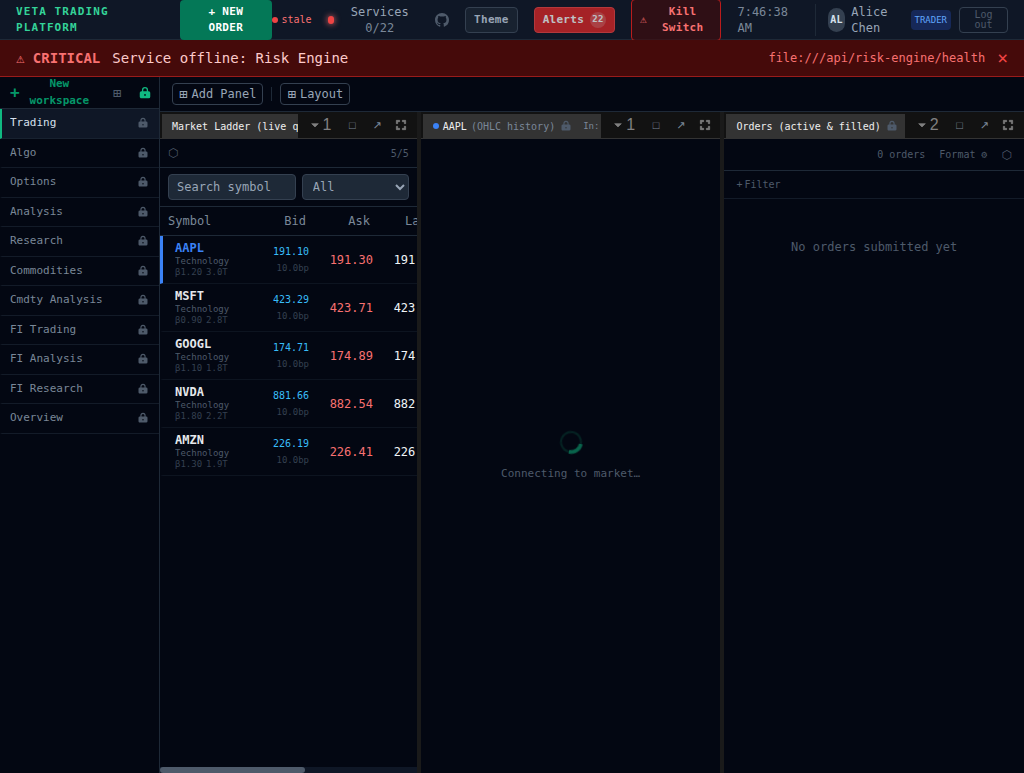
Section titled “Trading Dashboard”The default workspace for high-touch equity traders. Shows the market ladder (live quotes), price chart, and order blotter with status-coloured rows (filled, executing, expired, rejected).
Order Ticket
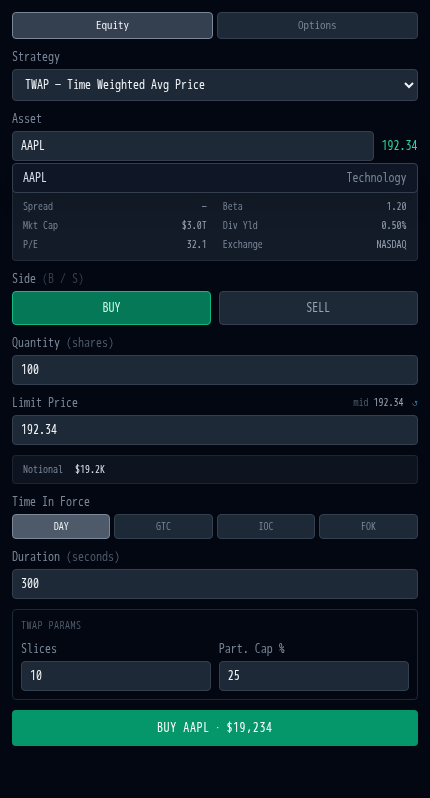
Section titled “Order Ticket”The manual order entry panel. Shows Equity/Options tabs, strategy selector (TWAP selected), asset details (AAPL with market cap, P/E, beta, dividend yield), BUY/SELL buttons, quantity, limit price, time-in-force, duration, and algo parameters. Only accessible to high-touch, FX electronic, derivatives high-touch, FI voice, and commodities voice traders.
Order Blotter
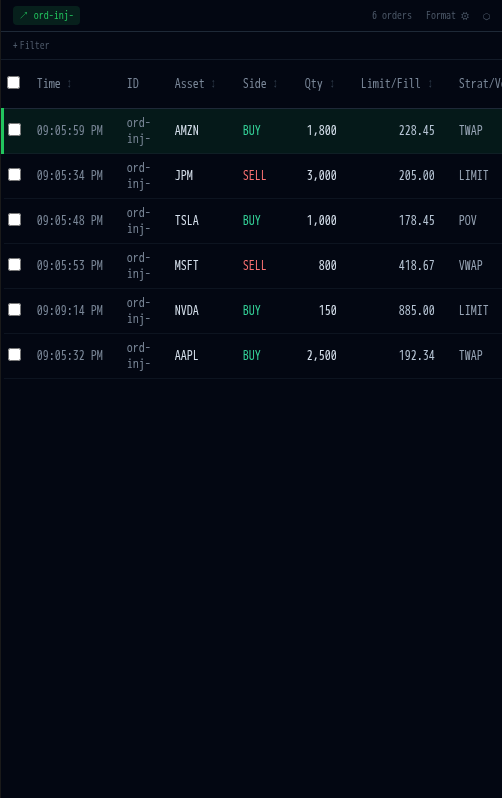
Section titled “Order Blotter”The live order blotter showing all statuses: FILLED (green), EXECUTING (white), EXPIRED (grey), REJECTED (red). Columns include time, asset, side, quantity, limit/fill price, strategy/venue, status, desk, and liquidity flag. Filter bar and conditional formatting editor available.
Algo Workspace
Section titled “Algo Workspace”The low-touch equity trader's view (Pipeline Ops workspace). Shows the algo leaderboard, throughput gauges, decision log, and execution analytics. Orders use TWAP, VWAP, POV, ICEBERG, and ARRIVAL_PRICE strategies.
Fixed Income Analysis
Section titled “Fixed Income Analysis”The FI voice trader's workspace. Shows spread analysis (G-spread, Z-spread, OAS), duration ladder (DV01 by tenor bucket), vol surface (implied vol smile), and bond pricing with pick par/off modes.

Option Pricing
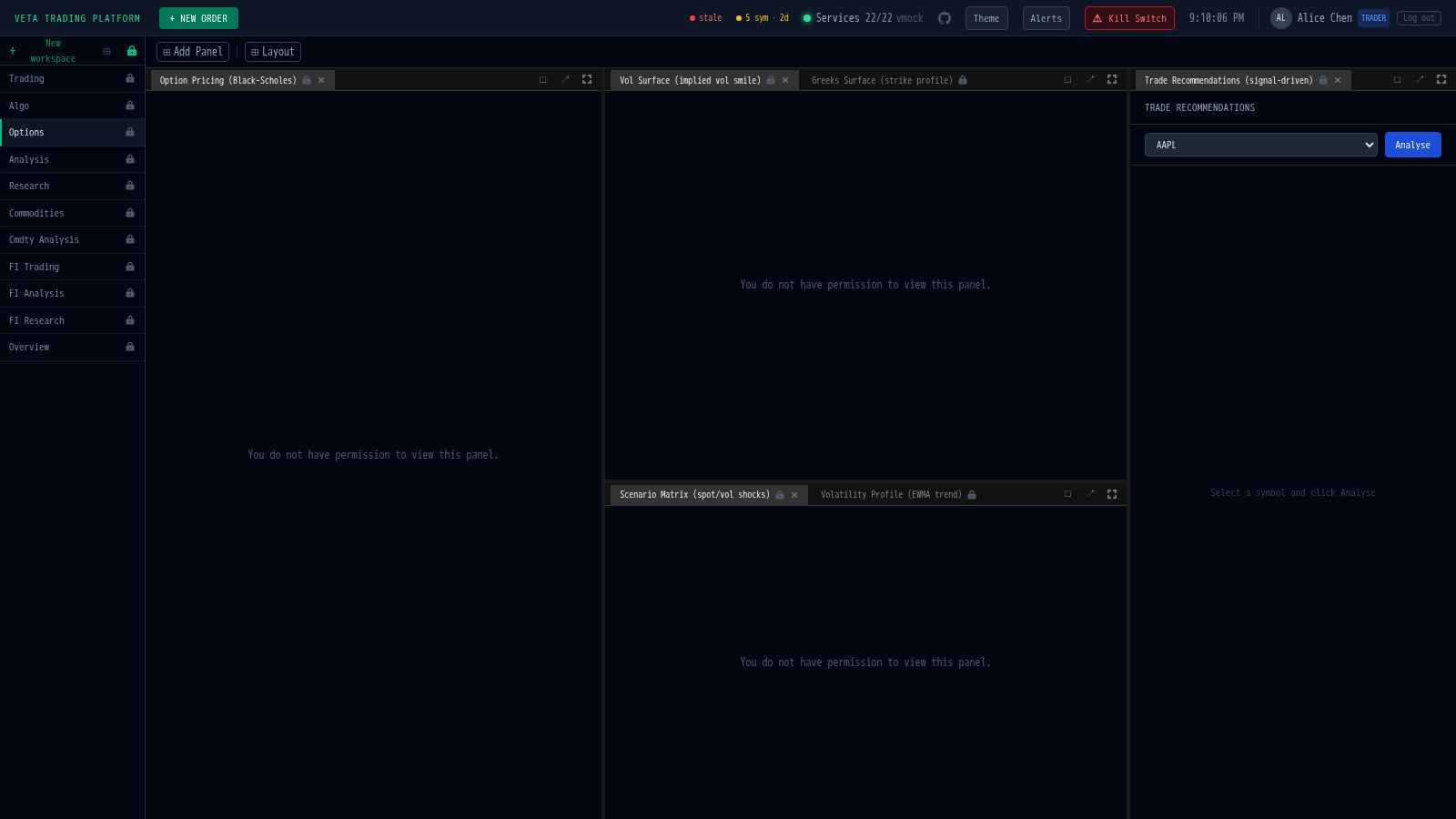
Section titled “Option Pricing”The derivatives workspace. Shows Black-Scholes option pricing panel, vol surface heatmap (5 expiries x 9 strikes), scenario matrix (spot/vol shocks with Monte Carlo distribution), and trade recommendations.
Market Heatmap
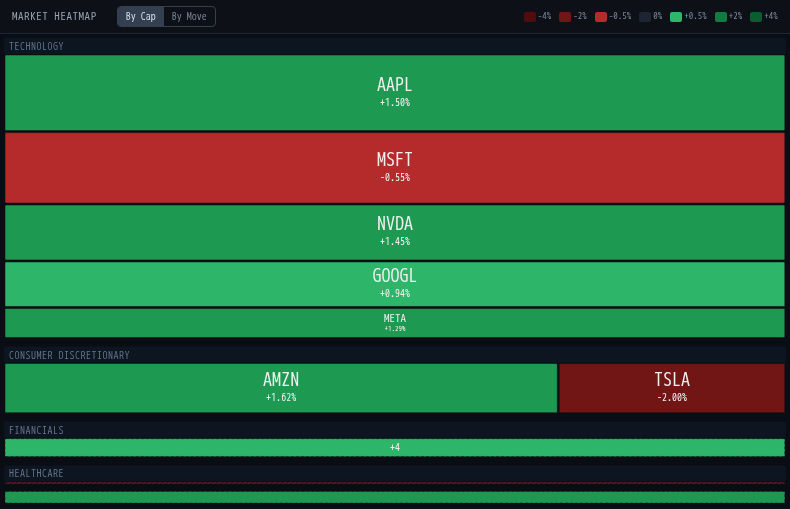
Section titled “Market Heatmap”Sector treemap coloured by percentage price change. Assets sized by market cap within each sector (Technology, Consumer Discretionary, Financials, Healthcare, Energy). Toggle between "By Cap" and "By Move" views.
Kill Switch
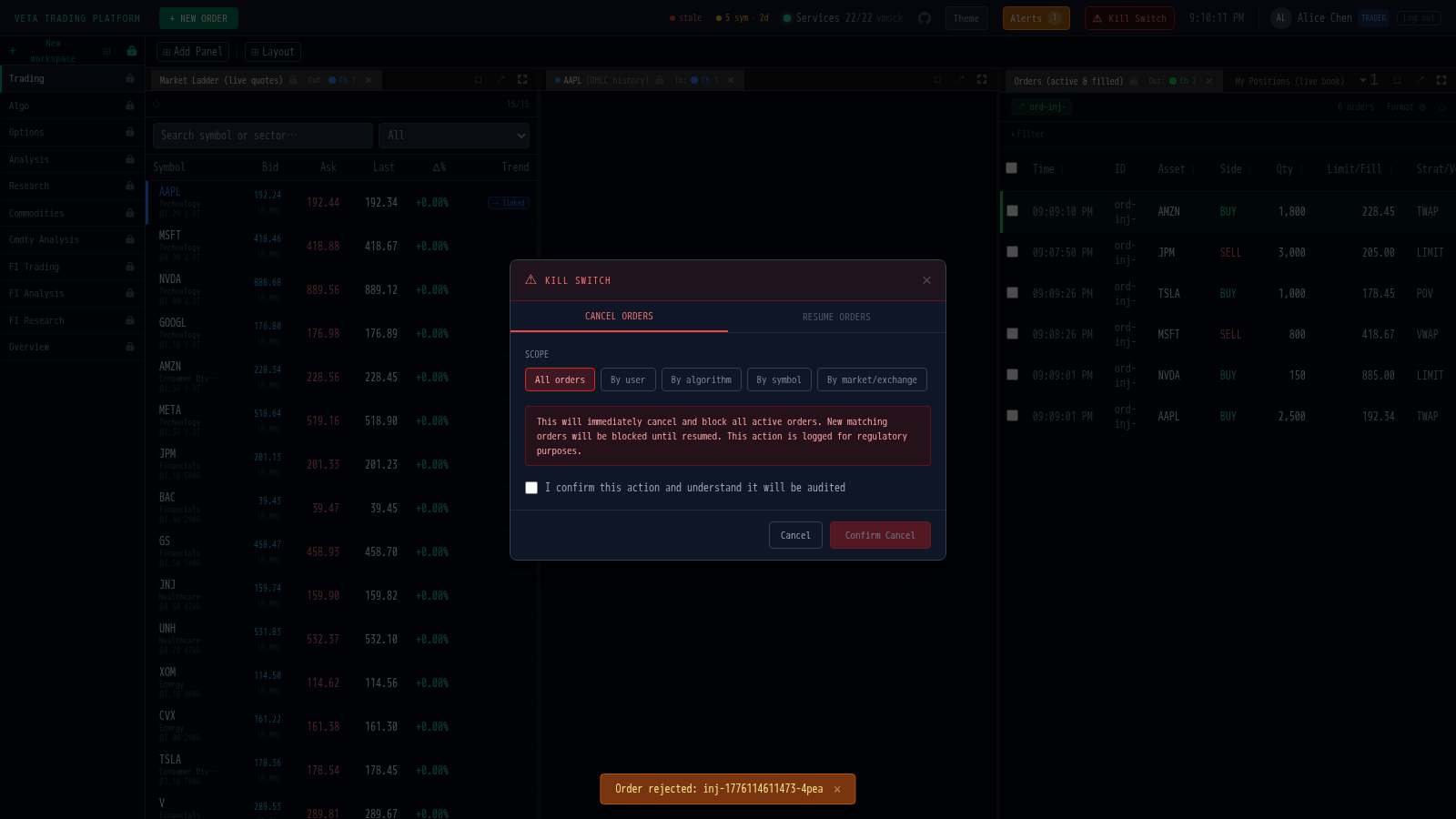
Section titled “Kill Switch”The emergency kill switch dialog. Supports scoped cancellation: All Orders, By User, By Symbol, By Strategy, or Current Workspace. Confirmation required with "I understand this action" checkbox.
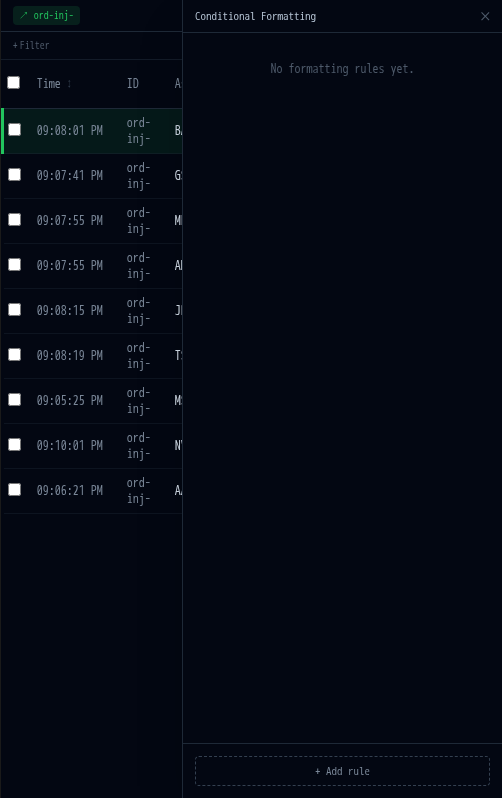
Column Formatting
Section titled “Column Formatting”The order blotter with the Conditional Formatting editor open. Define rules to highlight rows based on status, side, quantity, or any column value. Rules are persisted per-user.
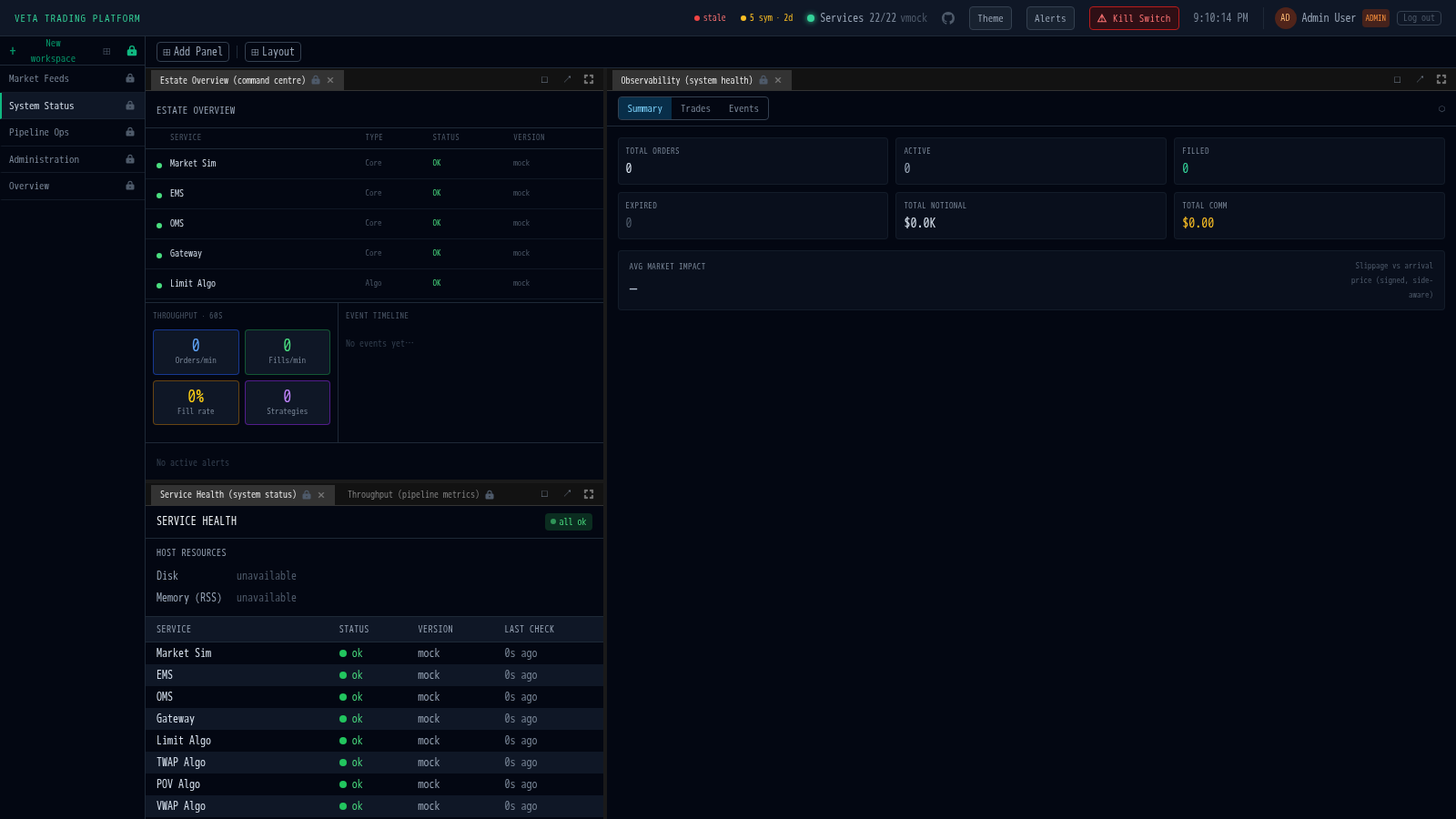
Mission Control
Section titled “Mission Control”The system status workspace showing estate overview, service health grid, observability panel, and throughput gauges. Used by admin and desk-head personas for platform monitoring.
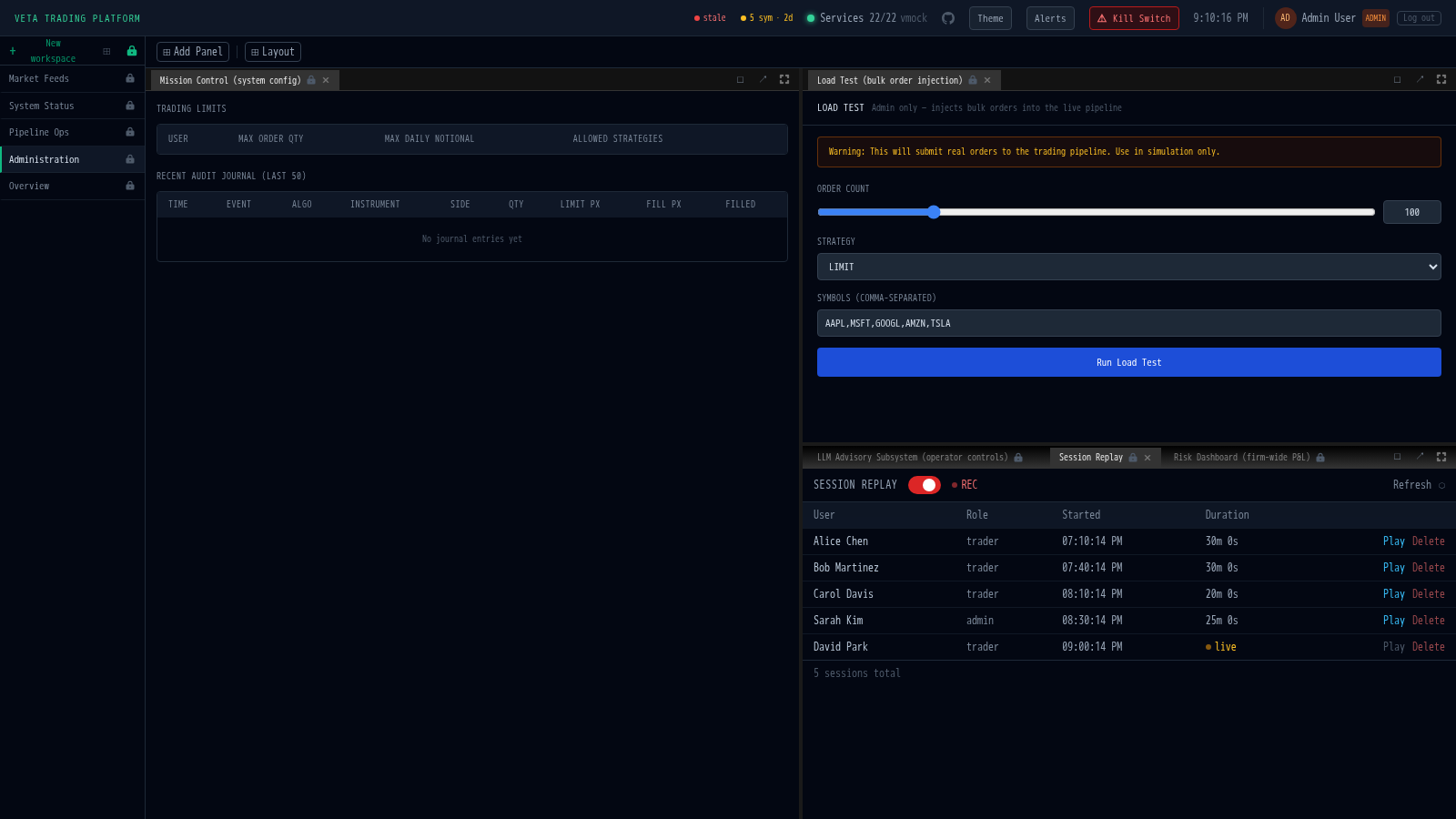
Session Replay
Section titled “Session Replay”The session replay panel in the Administration workspace. Shows recorded sessions with user name, role, start time, duration, and a "live" badge for active recordings. Admin toggle enables/disables recording with a red REC indicator. Playback uses rrweb-player with timeline scrubbing.
Desktop (Electron)
Section titled “Desktop (Electron)”Cross-platform desktop app with pop-out panels, native menus, and linked windows. Builds for macOS, Windows, and Linux.
Dashboard
Section titled “Dashboard”The desktop dashboard with the trading workspace loaded.
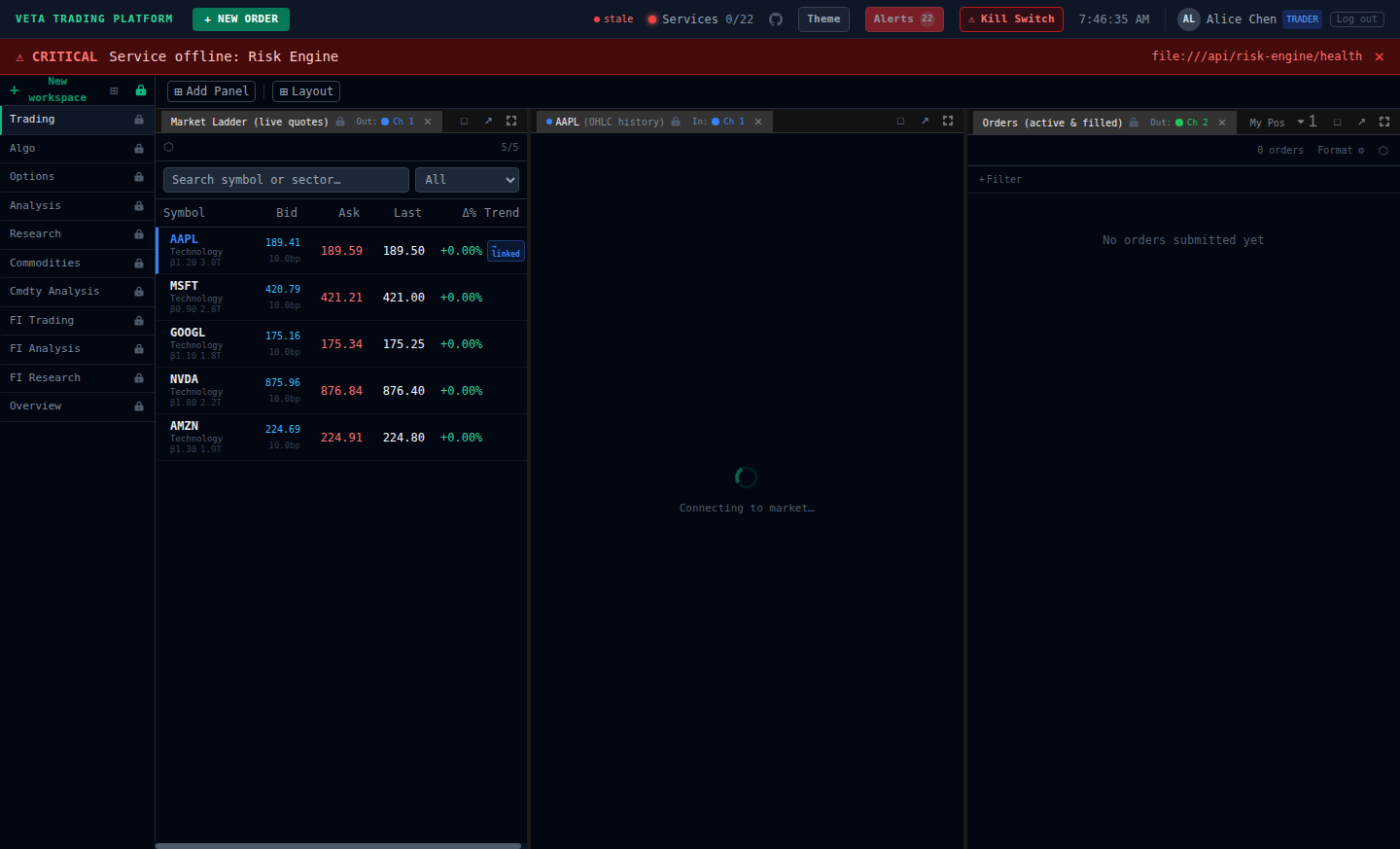
Main window
Section titled “Main window”The main application window with native menus and the workspace sidebar.
Linked pop-out
Section titled “Linked pop-out”A panel popped out into its own window, kept in sync with the main window over the shared channel.